To find out why, check out my "Cameras in the Classroom" article in Tech & Learning magazine.


As schools around the globe rapidly transitioned to remote learning, it became apparent that it is the responsibility of all teachers to engage students of all ages in a dialogue around responsible digital interactions. Most schools will not go back to ‘normal,’ and the importance and benefits of a digital education have become clear. School leaders have finally taken more seriously the work of bridging the digital divide. They are ensuring their students and staff have the technology and internet connectivity needed for success in modern times.
Along with this shift comes the responsibility of ensuring every educator understands the importance of, and knows how to teach, digital citizenship at every grade level. While most schools taught students about digital citizenship prior to the pandemic, a designated teacher was usually responsible for this, often the technology teacher or librarian.
Today, students need to have a better understanding of their digital footprint, how to effectively communicate, the tools they can use, strategies for when they feel unsafe online, and what is considered appropriate and inappropriate behavior. We don’t want inappropriate digital citizenship to impede sound teaching, learning, and relationship building. In some cases this has happened when students acted inappropriately online, resulting in teachers who responded by discontinuing their online instruction altogether. A Bronx middle school teacher shared why in a recent New York Post article: “There are a lot of us who aren’t comfortable with it. You never know where your face is going to end up right now.”
Moving forward, it’s imperative that educators don't use these mistakes as a reason to stop engaging with students online. Instead, these incidents can be teachable moments. When students’ make poor choices, we can take the time to help them understand their actions and how to make more informed and responsible choices.
We also must ensure teachers understand that they are role models online just as they are face-to-face. As stated in the New York Post article, teachers are routinely monitored online by their students. “They see us on Twitter, on Instagram,” one school staff member said. This is no surprise. Our students are growing up digital and they look to see how their teachers are behaving online.
All of this may feel new and even uncomfortable, however, our students deserve better.
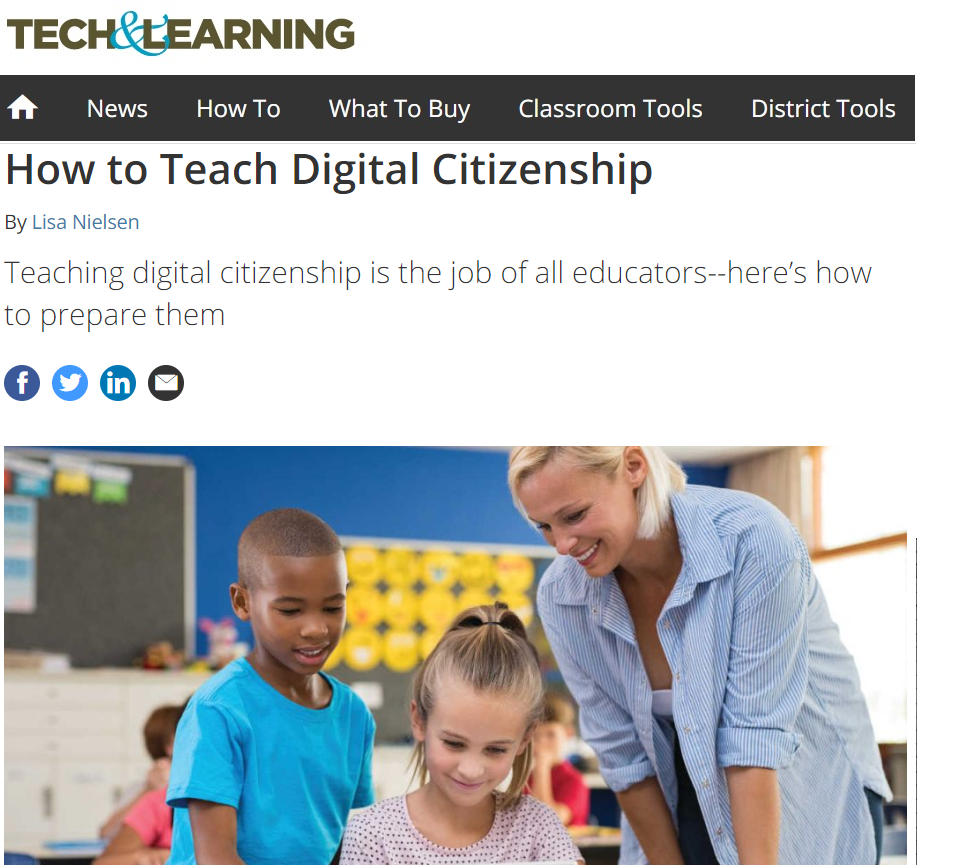
Learn how to get started. Check out my article on How to Teach Digital Citizenship in Tech & Learning magazine. There you'll find how to establish norms, assign roles, determine best practices, involve families, and select a curriculum.
 |
Create breakout rooms
Just like in your physical classroom, setting up
the small groups in advance wll solve some of the management issues involved in
small group work. If your platform allows, you can create the breakout rooms in
advance and pre-assign students to them. How to decide which students go
into which rooms? You can group them by:
Determine breakout room structure
Determine the breakout room structure you will
create. You can have breakout rooms that are:
Establish classroom norms with your students
Just like in your physical classroom, you should
discuss with students and plan together to establish the norms for
learning--and reinforce that they apply both in the larger classroom as well as
to the smaller breakout rooms. Be sure to address:
Save and share
These norms should be captured in a
collaborative document (like a Google Doc) and shared with all students.
Assign roles
Assign roles to your students such as:
Before assigning roles, make sure to review and
model these roles with students. It’s also good to vary who does each role.
Have a system for rotating roles, so that students get a chance to practice
each role at some point during the unit/project assignment.
Prepare materials in advance
You should set up spaces for each of the
following:
Note Taking: Create
a system and space for note taking. Organize the notes in a way that
makes sense. You may want to have a section for a student who was
assigned as a researcher to place links to sources and
resources.
Q&A or Backchanneling: Your students will have questions for you--or their
classmates. Set up a place--and process--where they can ask these
questions without leaving the group. Can they:
Help & Support
Create a way for students in breakout rooms to
ask for help (to everyone) and a way for them to report any negative behavior
(that goes just to you).
Practice makes perfect
Before doing a true breakout session (where
students are expected to do work or collaborate with other students), practice
a few times in the larger classroom space.
Share your drop-in protocols and notes
Let students know you may be dropping into
breakout rooms to see how students are doing.
Breakout room duration
Format and sharing
If you are doing a breakout room as part of
class, you may want to bookend the use of breakout rooms with whole group
instruction/discussion
As a result of the CoronaVirus Pandemic, we were faced with the choice of canceling our large yearly conference, or figuring out how to do a virtual conference. We opted for a virtual conference and decided to use Microsoft Teams and YouTube Live for our platform.
Traditionally, at our conferences we have opening remarks, a keynote speaker, vendor floor, workshops all day, and at the end we have closing remarks and awards. We kept some elements of the traditional conference, and scrapped or added others.
On the chopping block were keynote speakers and workshops. Instead of a long-form, 45-minute keynote, we decided that short featured speakers and inspiring speakers would be better for an online format. We also eliminated workshops. This was because, once we moved online, we were providing dozens of workshops each day. Participants didn’t need a conference to access workshops.
We kept the vendor floor, but had to figure out what it would look like were it to be virtual. We also decided to keep our traditional closing remarks and award ceremony, but with a twist. This year all staff received an award for their heroic efforts during our move to digital education.
We added watch parties. This is because we knew that staff most wanted to connect and network with other like-minded individuals. We had more than a dozen watch parties grouped by affinity such as librarians, computer science teachers,special education teachers, or geographic location. In the watch parties, hosts were armed with a variety of interactive elements including polls, quizzes, discussion topics for each speaker, and more. Visit Tips for Hosting Watch Parties to learn more.

Our first order of business was to determine what the focus of the conference would be this year. We wanted to address some of the biggest issues happening right now. We decided on the following tracks:
Equity
As we moved online it became more important than ever to address the digital divide. This means ensuring all students and staff had access to the technology that would result in effective teaching and learning
Digital Citizenship
As nearly all content moves online, it is of utmost importance that every educator takes on the role of understanding digital citizenship for themselves and their students.
Diversity
In our school community more than 50% of families speak a language other than english at home. This means we want to create content that is appropriate for the diversity represented among staff, students, and families.
Digital Accessibility
Approximately 20% of our students have a disability. It is imperative that staff understands and knows how to create content that is accessible to all.
We brought in featured speakers to represent the areas we wanted to address at our conference, however, we also wanted to bring in other voices. This included the staff that often connected with our audience such as those who provided professional development opportunities. We also brought in the voices of students, educators, and families.
We chose platforms our district already had available. This enabled us to run a virtual conference without having to purchase an expensive technology.
We choose YouTube Live as our platform for several reasons.
Unlimited audience
Automatic Closed Captioning after the event that can be edited if there are errors
Moderated commenting for an interactive experience
We selected Microsoft Teams for our watch parties and vendor floor.
We created a vendor floor that launched during the conference, but would be available afterwards for ongoing support. We created a “Digital Education Partners” Team with dozens of vendors. Each vendor had their own channel. We encouraged vendors to add videos to their feed that showed teachers and students using their platform. We also encouraged them to add files and tabs that included things like contact information, link to their website, purchasing information. We also encouraged them to set up a live meeting where participants can drop in, have a chat, and learn more.
We set up a meeting in each themed channel, for the watch parties. In each channel participants had the ability to interact in many ways.
Chat
During the watch party participants can respond to what they are seeing in the chat. The chat also has interactive elements including:
Reactions: Participants could react to what was happening in the chat with emojis and gifs.
Feelings: For any comment, participants can respond with a thumbs up, heart, sad face, angry face, laugh, or surprise.
Video and voice
The host can invite participants to come off mute and engage in conversation with voice or voice and video. Multiple participants can speak at a time.
If need be, the host can mute or remove participant.
Polls
In the channel, the host can create polls using Polly or forms for increased interactivity and engagement.
One of the benefits of Microsoft Teams is that participants can select closed captioning during meetings. We also had a sign language interpreter available for anyone who needed those services.
We also provided an interactive experience by encouraging folks to use the hashtag #NYCSchoolsTech to share what they were learning in social media. Social media was abuzz with information and our hashtag even trended on Twitter.
Below is the post-video of the livestreamed event enjoyed during the watch parties.

