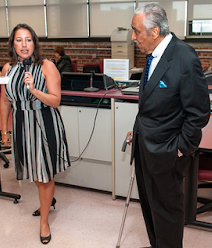
Innovative educators understand the importance of being prepared to give a great presentation to inspire and influence others. Keeping these five ideas in mind, will help ensure you don't fall short.
Presentation Checklist
Have speaker notes on your slides.
Know how to access the speaker notes as needed.
When I present, I have speaker notes view on my phone.
Use the speaker notes to make a transcript and practice it.
Submit your presentation to the person who requested you speak in advance and ask for feedback.
If you are doing this for a class, ask your teacher for feedback before you present.
If you're a teacher, ask your students to share their presentations with you for review before they present live.
Arrive about at least 15 minutes early. Use this time to:
Prepare yourself.
Check your tech.
Don't forget to check the sound.
Connect with participants.
Your turn
Do you do you, or your students, do each item on the checklist before presenting? Any other tips, tricks, or ideas?
When thinking of ways to support those who are legally blind, two supports often come to mind. Guide dogs and Braille. It's no wonder. Guide dogs provide their owners with a sense of freedom, an increased level of confidence, and a feeling of safety. Blind people who know Braille and use it find success, independence, productivity, and are more likely to find employment.
Surprisingly though, of the 1.3 million people in the United States who are legally blind, only about 2% have guide dogs according to Guiding Eyes for the Blind. Also surprising is that fewer than 10 percent are Braille readers according to a report from the National Federation of the Blind. Unfortunately, these supports are currently generally reserved for the elite in our society because of cost and access. These are unfortunate statistics.
Fortunately, there are low-to-no-cost technologies that provide support to the visually impaired and blind population.
Five technologies to support the visually impaired and legally blind.
Exploration Apps
There are apps that provide GPS. These apps let you explore the world around you using audio messages. It tells you about nearby places, and it also will set up routes. The app lets users point the phone in your hand in any direction to hear the nearest places as virtual talking signs. When pointing straight at a virtual sign the speech is loud and clear, but as you point away from it, the speech starts to get staticky, so you have quick audio feedback about the exact location of the virtual talking sign.
Here are the two popular free apps. overTHERE (iOS only) Lazarillo (iOS and Android)
Sighted Volunteer App
Be My Eyes enables blind or visually impaired users to lead a more independent life by giving them access to a network of sighted volunteers and company representatives. By the tap of a button, users can get connected to a sighted volunteer, who is ready to provide visual assistance for the task at hand. You can request assistance at any time of the day, from anywhere, and it will always be free.
Seeing Assistive Technology
These are apps that narrate the world around you using a phone or glasses to identify what is around you out loud.
More and more content creators realize the importance of including alternative text (alt text) with their images. This allows the person consuming the content to understand what is in a picture if they are unable to see it well.
Of course there are far more than five tech resources out there. These are some that are popular among innovative educators. What is your experience? Have you used any of these resources with your students are families? If so, what has your experience been? Are there other resources you’ve used and loved that are missing?
Social media enables us to produce content for authentic audiences. However, it is also important to ensure this content is inclusive. That means making photos accessible. To do this, the creator of the post must include alternative text (alt text). Unfortunately, it's not baked into most platforms without taking a few extra steps. The NYC Mayor's Office for People with Disabilities offers the following guidance.
Adding Alt Text to Social Media
Twitter - First, enable alt-text within your account settings under “accessibility.” Then, before tweeting an image you will receive a prompt that says “add description.”
Facebook - When posting an image, tap “edit photo” and then “add alt-text.”
Instagram - When posting, go to “advanced settings” and then “write alt-text.”
Blogger - Click on the photo. Select properties and then "write alt-text."
What makes good alt text?
Good alt text has a good description. Descriptions are usually one sentence. Below are five questions to ask yourself when creating alt text,
Who is in the photo?
Main person(s)
Additional people
What are they doing?
When was the photo taken?
Where is the photo being taken?
Was the photo taken at an event or occasion?
If so, what was it?
Why is the photo being taken?
These are also questions that can be used to make a good photo caption.
Classroom Applications
Innovative educators understand that today's students must not only know how to produce content. Students also must know how to produce accessible content.
Find some content from student's learning materials or current events. Ask students what alt text they might create using these five questions. Have students share the alt text they've created and discuss which option might be best and why.
Innovative educators can prepare for Global Accessibility Awareness Day (GAAD) which takes place on Thursday, May 16th. GAAD was launched in 2012 to get everyone talking, thinking and learning about digital (web, software, mobile, etc.) access/inclusion and people with different abilities. Read this for more about the background of the day and Joe Deven, who started it all. This is particularly important for educators because they understand the importance of creating inclusive content for students and families. They also understand that to prepare today's students for modern careers, they too must understand how to create accessible content from basic documents and presentations to their day-to-day interactions on social media. Recognized on the third Thursday in May each year, this global event inspires a growing list of in-person and virtual events each year.
Seven-Day GAAD Challenge
One such event is being organized by website management company Siteimprove. You can join their seven-day GAAD challenge. It is designed to help you learn, share, and act on digital accessibility and inclusion. Join the challenge and you'll receive a daily email challenge that will help you make the world a little easier for everyone to navigate.
Once you sign up, you will join the seven-day email challenge delivered to your inbox with information, accessibility resources, and tips about digital accessibility.
The topic of the #NYCSchoolsTechChat in May was hot to best provide inclusive digital content and environments for students and families. Members of the #NYCSchoolsTech community chimed in with powerful ideas and advice. Check out the Wakelet below to learn some of their insights.